
Flex2 Enhanced Flex Quantity
The Flex2 Enhanced Form features a customizable quantity dropdown that allows patrons to select a specific number of items. Whether you are offering tickets, hats, or mugs, this feature can be applied to virtually any product. A patron simply clicks a button and then chooses their desired quantity (e.g., 7 tickets, 2 hats, or 3 mugs) to purchase. It does not support adding multiple items to a mini-cart like the Flex2 Package for allows.
You'll find a new Quantity section in the Pricing Configuration. By default, it is not enabled.
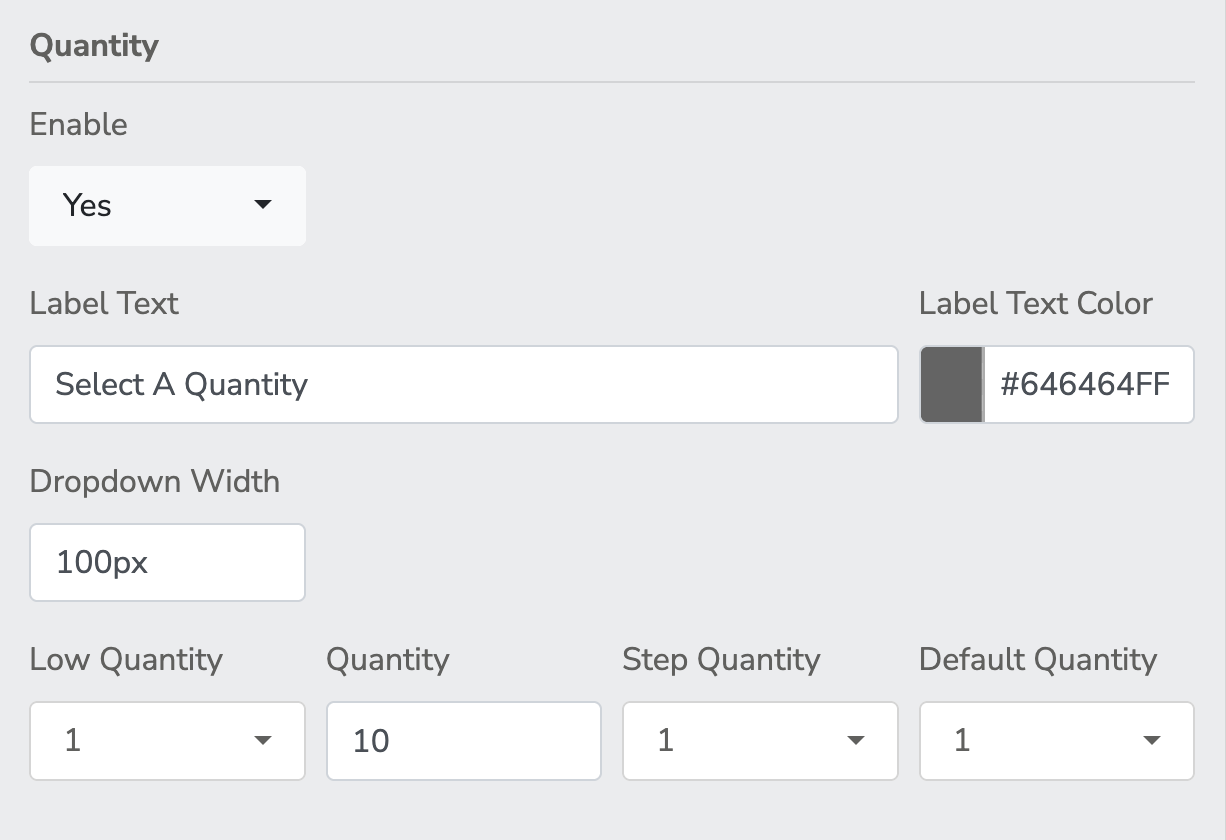
Enable
Use this dropdown to turn the quantity selector on or off. Selecting "Yes" will display the quantity options on your page.
When the quantity dropdown is enabled, the manual count field is automatically hidden. This is because the total count is now determined directly by the patron's selection from the dropdown menu, rather than manual entry.
Label Text
This is the text that will appear next to or above the dropdown menu to instruct the user. In the example, it is set to "Select A Quantity".
Label Text Color
This sets the font color for your Label Text. You can enter a specific hex code (like #646464FF ) to match your brand's color scheme.
Dropdown Width
This determines how wide the actual dropdown box will be on the screen. It is currently set to 100px (pixels).
Low Quantity
This sets the absolute minimum number a user is allowed to select from the dropdown (currently set to 1 ).
Quantity
In this context, this field acts as your maximum quantity. It determines the highest number a user can select from the dropdown (currently set to 10 ).
Step Quantity
This sets the increments by which the numbers increase in the dropdown menu. A step of 1 means the options will be 1, 2, 3, etc. (If set to 2, the options would be 2, 4, 6, etc.).
Default Quantity
This is the pre-selected number that automatically appears in the dropdown box when a user first loads the page.
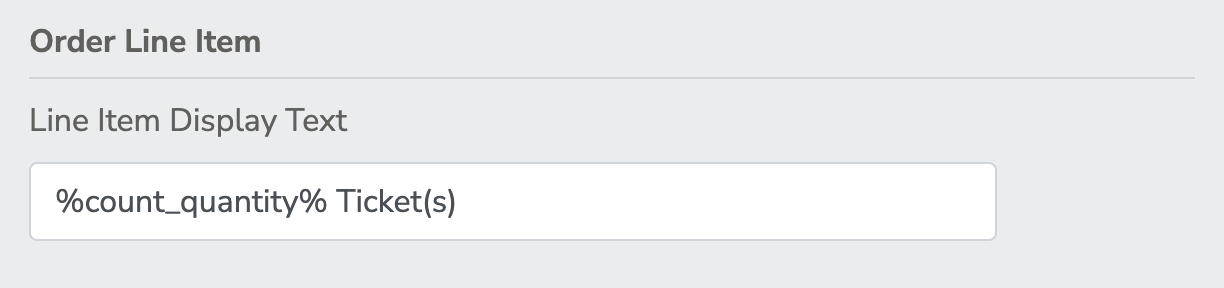
Count Quantity Token
%count_quantity% is a token that can be used on your form to dynamically display the value of your dropdown menu. %count_quantity% Ticket(s) would render as 7 Ticket(s). It's primary use would be in the Line Item Display Text.
Message Manger
There is a specific Message Manager receipt that is available for when you use the Quantity feature.
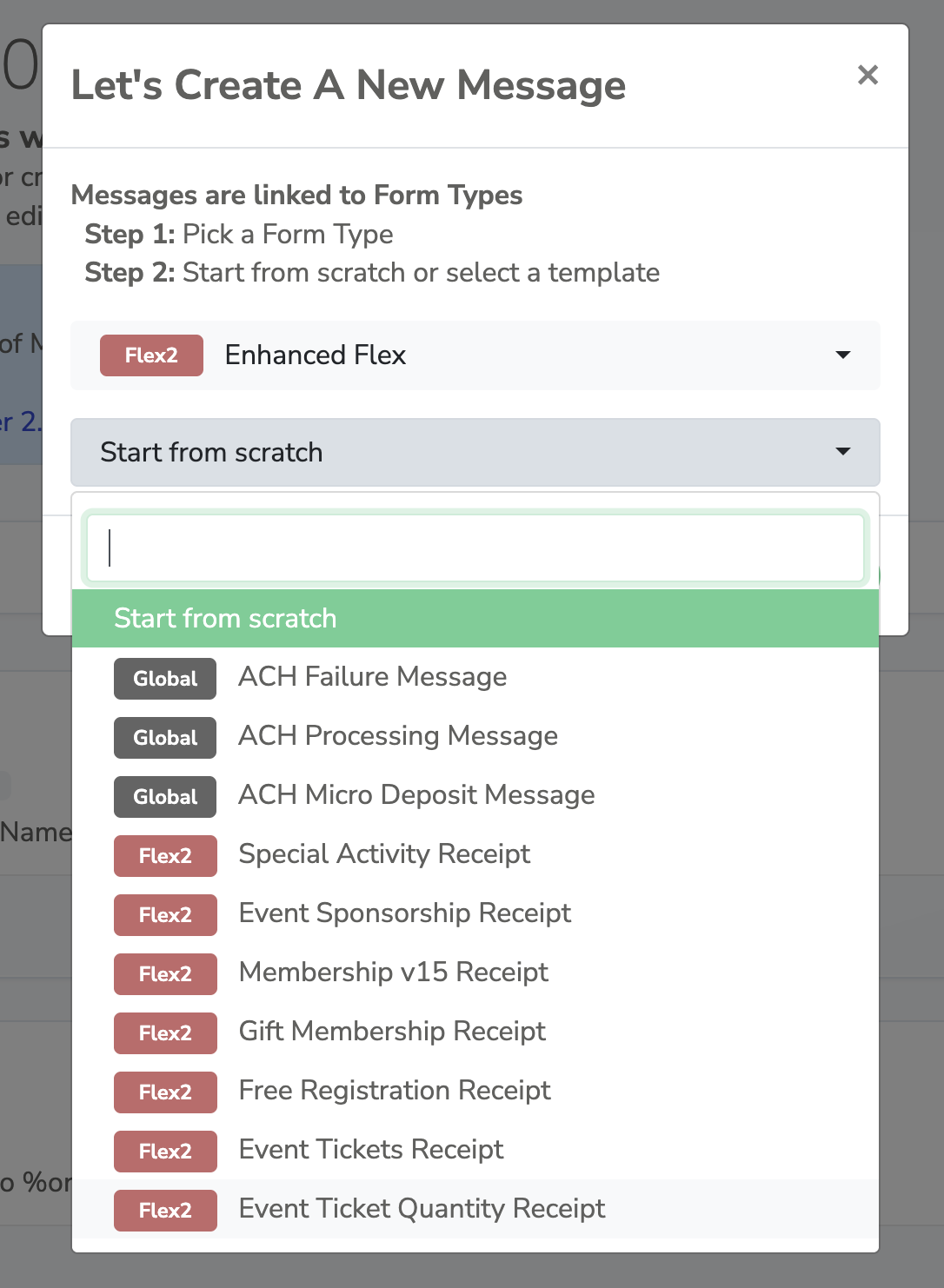
There are few NEW message manager tokens available in the merge tag menu in the Message Manager editor.
%button_quantity%
The quantity of the selected button.
%button_qty_amount%
The selected button amount times Count Quantity. It does not include the monetary symbol.
%fmv_qty_amount%
Fair Market Value Total = The money going to the Fund, On Account, or Performance & PriceType times the Count Quantity. It does not include the monetary symbol.
%fmv_qty_donation_amount%
Fair Market Value Total = the money going to the Donation or On Account times the Count Quantity. It does not include the monetary symbol.