
Tap to Pay - Configuring a Form
Enable/Disable
Expand the Tap to Pay collapsible panel on a form to expose this features settings. You can set how patron contact info is collected, customize buttons and colors, configure a fallback form via a QR Code for devices that can't tap, and set an internal email address to receive a receipt for anonymous transactions.
Select Disabled to deactivate Tap to Pay on this form. Disabled is the default setting for existing forms and newly created forms.
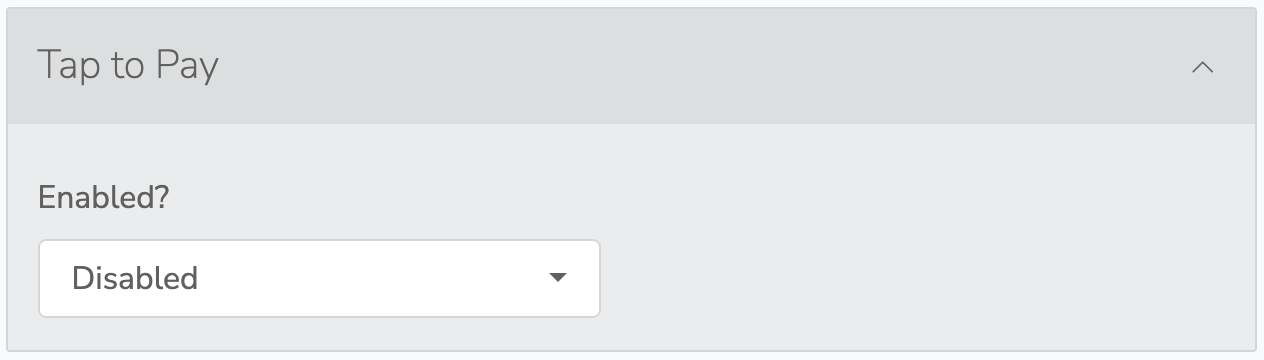
Select Enabled to activate Tap to Pay on this form.
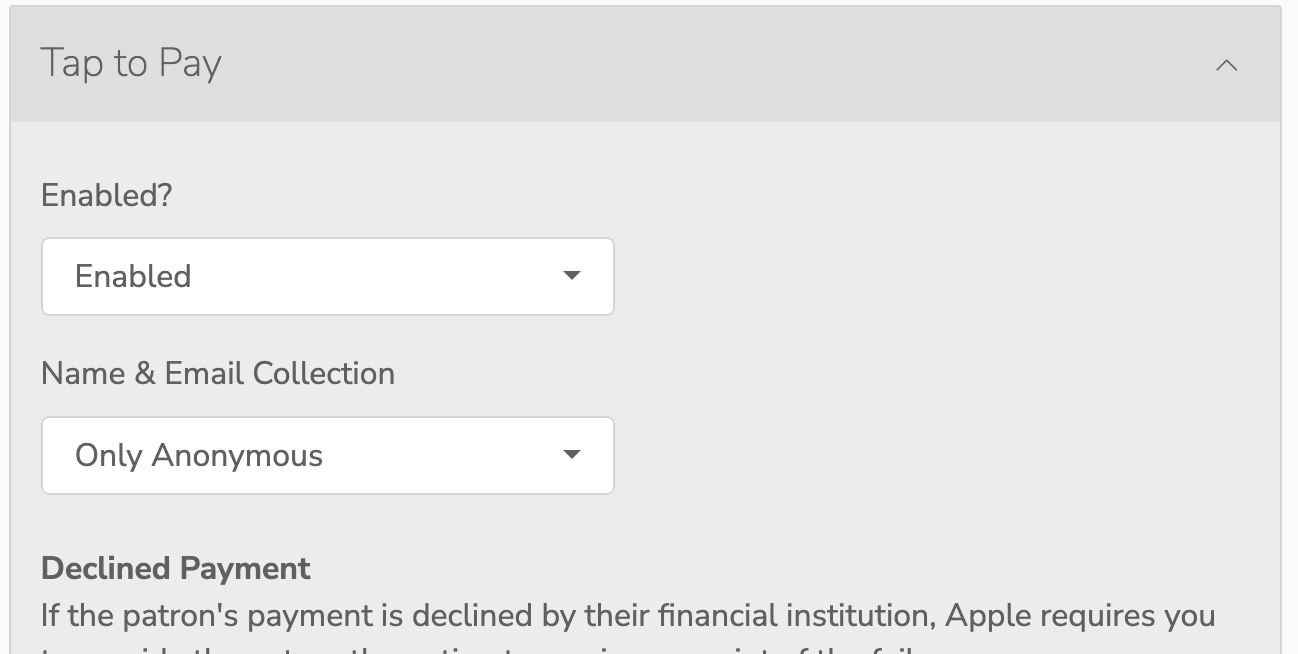
When Tap to Pay is enabled, several modifications happen to the form.
-
Form Listing Page
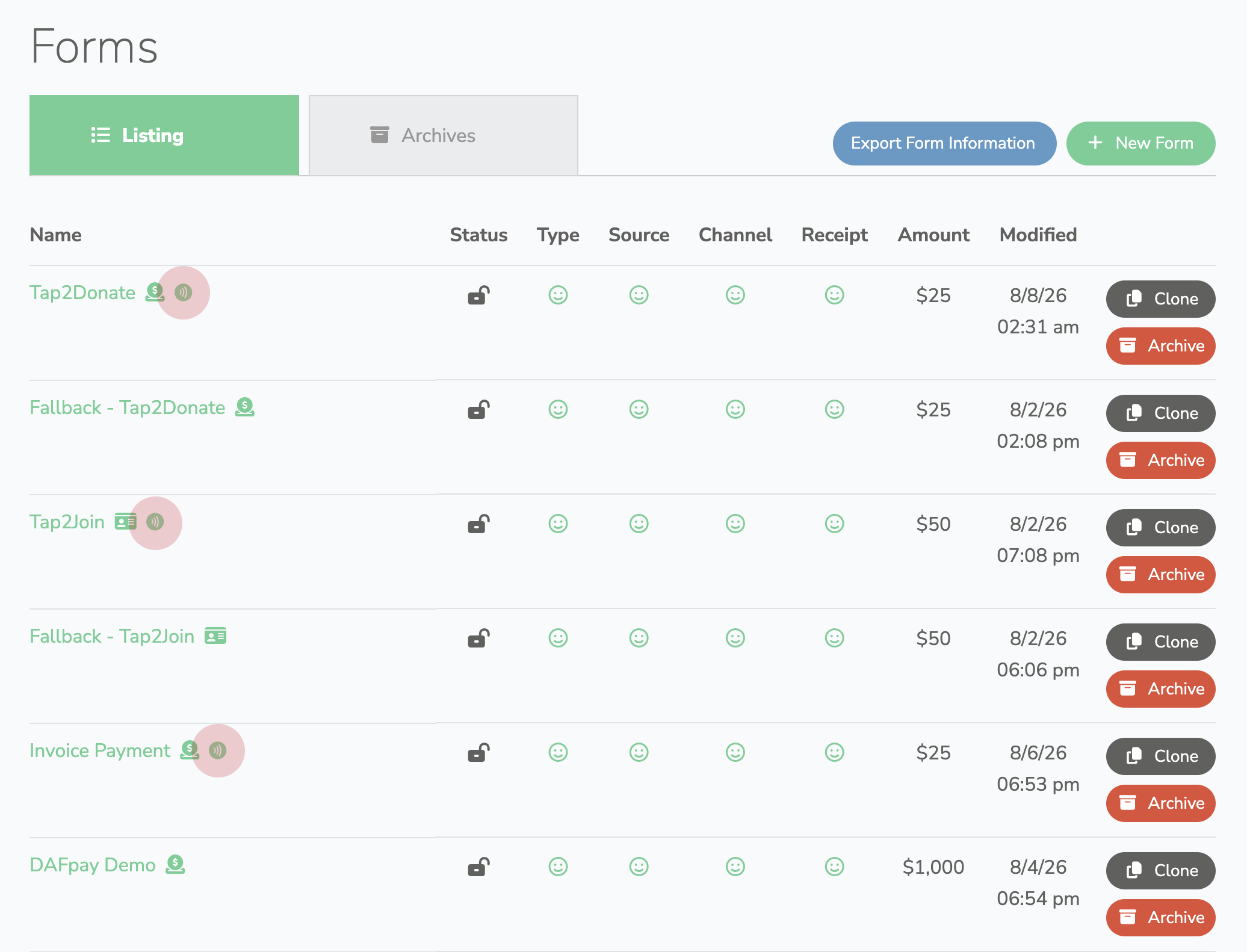
Any form set to Tap to Pay mode displays an NFC icon next to its name. This lets you quickly see which forms are configured for Tap to Pay at a glance.
-
Form Display - Web Browser
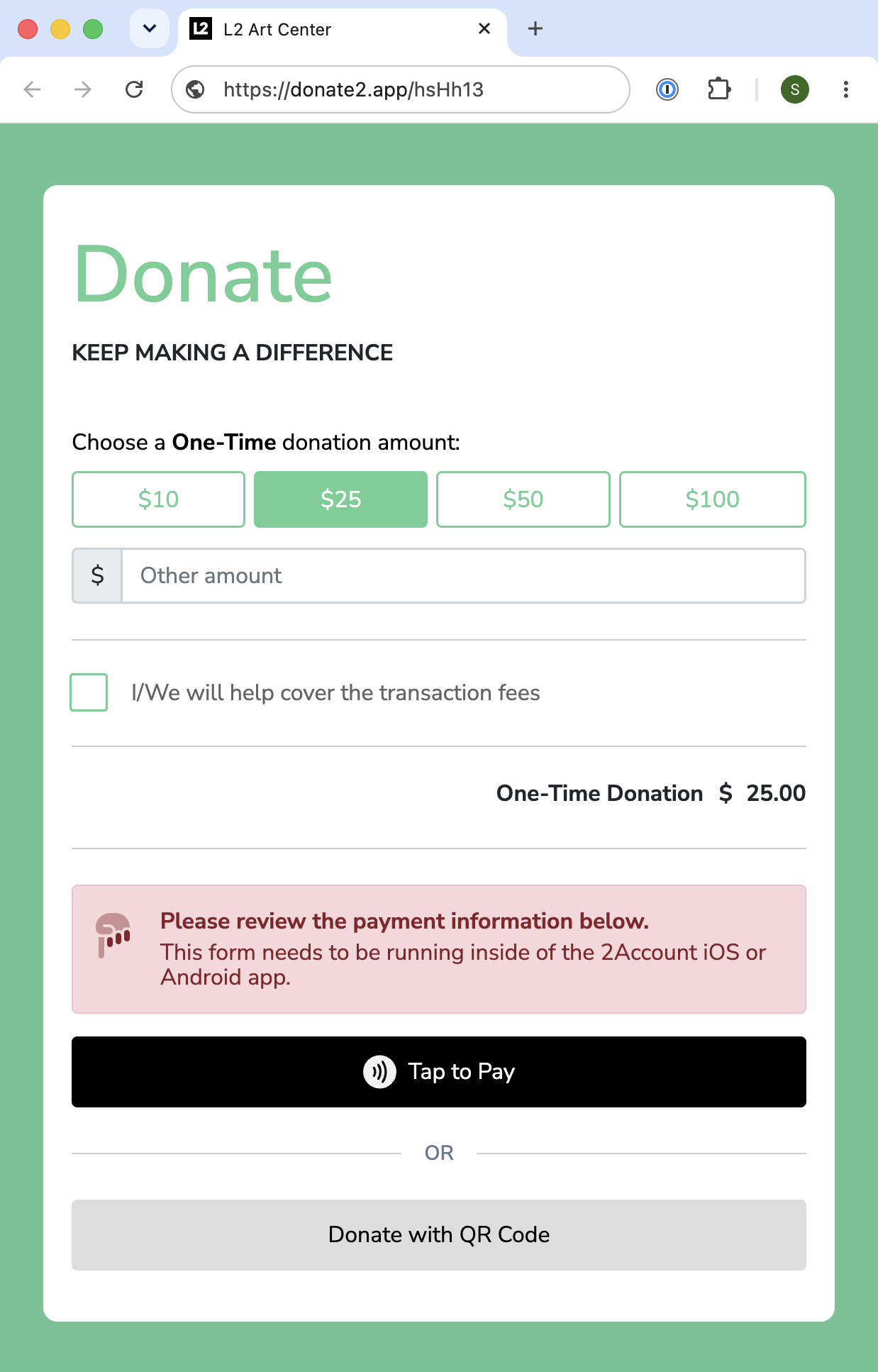
Forms can be viewed in any web browser, but clicking the Tap to Pay button will display an error letting you know the form must be opened inside the 2Account iOS or Android app. This allows you to proof the form’s design in a browser, though you won't be able to process a live transaction there.
Note
If you need to test your Tessitura configuration (funds, sources, CSIs, etc.), test the form in standard web mode first. Once you've verified your setup is working smoothly, switch the form over to Tap to Pay mode as your final step.
-
Payment Options Collapsible
When Tap to Pay is turned on, the standard Payment Options section becomes unavailable. Tap to Pay automatically handles the checkout experience, overriding traditional web payment methods like credit card inputs or digital wallets since they don't apply to on-site tap transactions.

Name & Email Collection
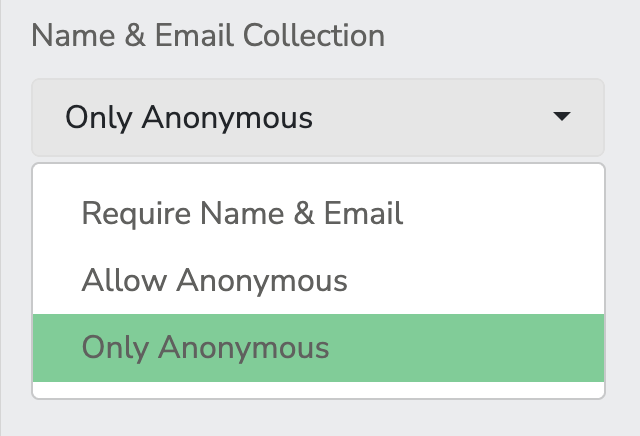
Choose how you want to handle donor contact details during a Tap to Pay transaction.
-
Require Name & Email
Prompts the patron to enter their contact info before tapping. Ensures every donation is tied to a specific constituent record.
-
Allow Anonymous
Gives the patron a choice on screen—they can either enter their info for a personalized receipt or skip it to pay quickly.
-
Only Anonymous
Keeps the checkout lighting-fast. Contact collection is optional and is not collected until after the tap/payment has been made. The patron taps, picks whether they want a receipt (requires the contact information), or walks away and we process the order on the assigned Anonymous Constituent record in your Tessitura.
Note
The Only Anonymous feature requires Anonymous Constituent Credentials configured in your Tessitura settings. This allows us to map Anonymous transaction to an account.
Declined Payment
Apple has rules that require you to offer patrons a receipt option if their bank declines the contactless payment.


-
Declined Receipt
Pick the automated email template from Message Manager to send if a failed transaction receipt is requested.
-
Headline
Customize the main title displayed on the device screen (e.g.,
"Payment Unsuccessful").= -
Body Copy
Enter the explanatory text shown to the patron (e.g.,
"Your financial institution declined this transaction.").
-
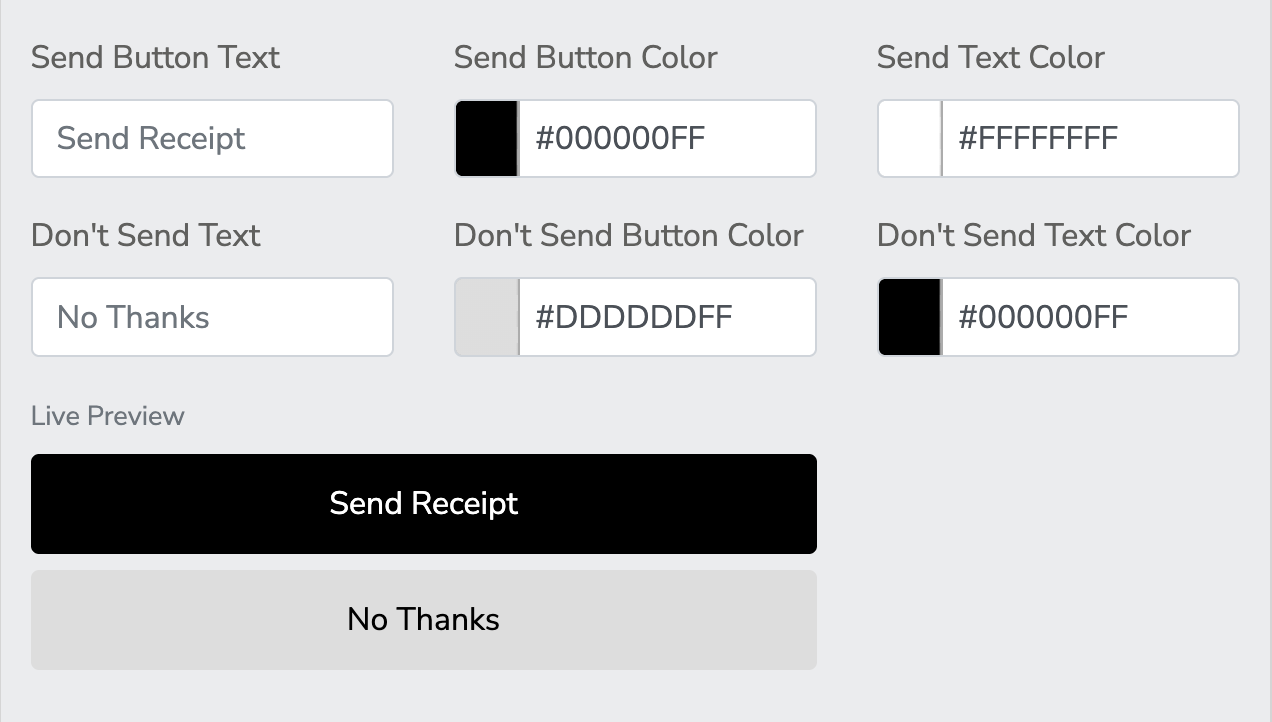
Send Button Text
Enter the label for the primary button (e.g.,
"Send Receipt"). -
Send Button Color
Enter the 8-digit Hex color code for the background (e.g.,
#000000FFfor solid black). -
Send Text Color
Enter the 8-digit Hex color code for the label text (e.g.,
#FFFFFFFFfor white text). -
Don't Send Text
Enter the label for the secondary button (e.g.,
"No Thanks"). -
Don't Send Button Color
Enter the 8-digit Hex color code for the background (e.g.,
#DDDDDDFFfor light grey). -
Don't Send Text Color
Enter the 8-digit Hex color code for the label text (e.g.,
#000000FFfor black text). -
Live Preview
Check the real-time preview box below these fields to verify contrast, color matching, and button text.
Fallback Payment Option
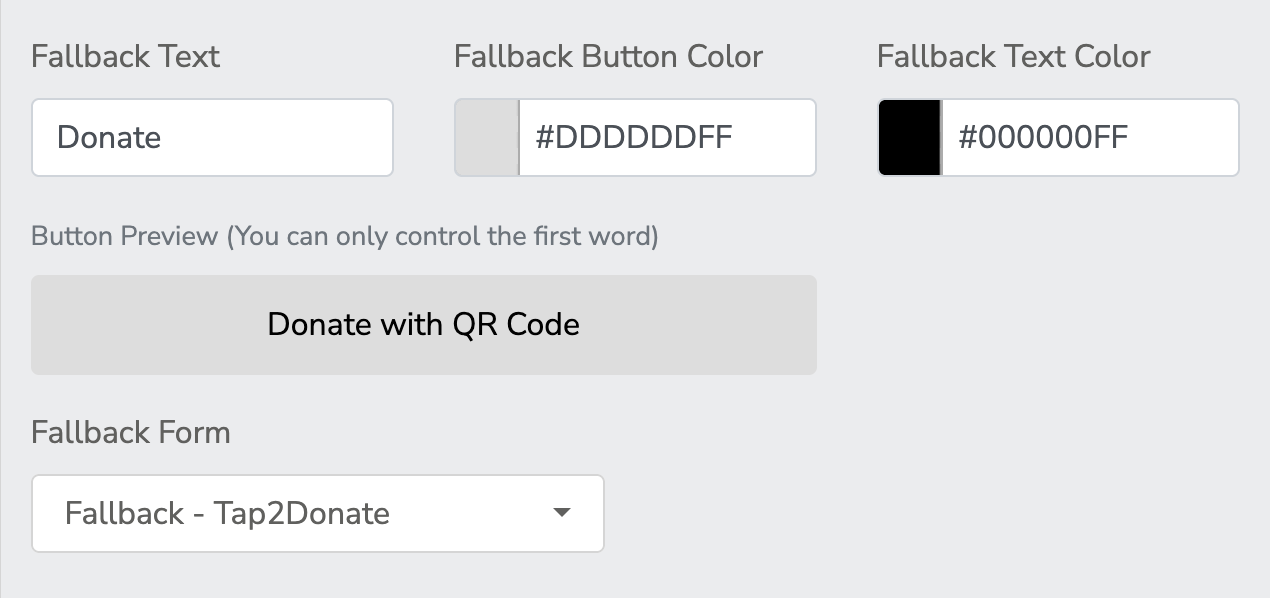
If a patron’s card fails or their phone doesn't support NFC, you can display a QR Code with a single tap. Scanning the QR Code opens a standard web form on the patron's device, allowing them to complete their transaction using their regular browser and credit card info.

Fallback Forms
This is not required. If you do not specify a Fallback Form, the existing TAP to Pay form will render like normal. Tap to Pay enabled forms only render as Tap to Pay when they are redering inside the 2Account App (iOS, iPadOS, or Android)
-
Fallback Form
Choose a optional form that opens on the patron's phone when they scan the QR Code.
-
Fallback Text
Enter the action word prefix (e.g.,
"Donate", "Join", or "Pay"). We automatically appendwith QR Codeto create the full button label (as displayed in the Button Preview). -
Fallback Button Color
Enter the 8-digit Hex color code for the background (e.g.,
#DDDDDDFFfor light grey). -
Fallback Text Color
Enter the 8-digit Hex color code for the label text (e.g.,
#000000FFfor black text). -
Button Preview
Displays a real-time preview of the fallback button. (Note: You can only control the first word of the text, while the background and text colors update live).
Anonymous Successful Payment
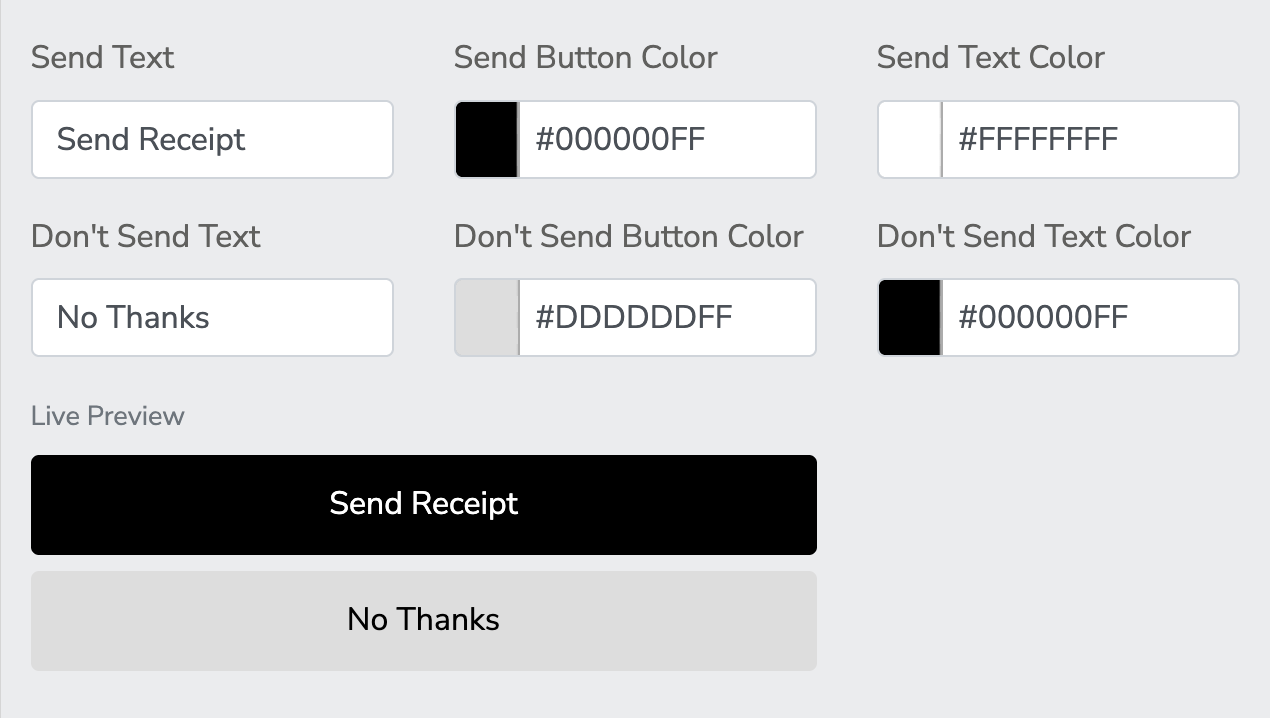
When an anonymous tap goes through, the patron is shown a quick confirmation screen asking if they’d like a receipt. If they tap "No Thanks" (or just walk away), the donation remains completely anonymous. If they choose to enter their First Name, Last Name, and Email Address, the transaction is no longer anonymous, and will process it as a standard identified (Login Type and Email Address) transaction in Tessitura.
-
Send Text
Enter the label for the primary receipt button (e.g.,
"Send Receipt"). -
Send Button Color
Enter the 8-digit Hex color code for the background (e.g.,
#000000FFfor solid black). -
Send Text Color
Enter the 8-digit Hex color code for the label text (e.g.,
#FFFFFFFFfor white text). -
Don't Send Text
Enter the label for the skip button (e.g.,
"No Thanks"). -
Don't Send Button Color
Enter the 8-digit Hex color code for the background (e.g.,
#DDDDDDFFfor light grey). -
Don't Send Text Color
Enter the 8-digit Hex color code for the label text (e.g.,
#000000FFfor black text). -
Live Preview
Use the side-by-side preview box to verify that your buttons are legible and styled correctly.
Anonymous Email Receipt
Enter an internal email address (e.g., your finance, development or box office inbox) to receive copies of anonymous transaction receipts when a patron opts not to provide their personal contact info. If left blank, no receipt will be generated or sent when a patron skips entering their email address.

-
Internal Email Address
Enter an internal or organizational email address where anonymous receipts should be routed when a patron selects "No Thanks" (or doesn't provide their personal email).
Note
If left blank, no receipt will be generated or sent when a patron does not provide their contact information (First Name, Last Name, and Email Address).
Tap to Pay Form Access
At the form level, you can see and control who has access to this specific Tap to Pay form.
-
Access is allowed for:
This is a multi select drop down allowing you to quickly add or remove a user from having access to this Tap to Pay form.
