
Tap to Pay - Successful Transaction
Overview
Tap to Pay in the 2Account Mobile App is designed for speed, flexibility, and capturing the moment when patron enthusiasm is highest.
Whether you are engaging patrons in the lobby right after a show or at a special event, you can process a full contribution—complete with fee coverage and a personalized tax receipt—in under 30 seconds!
Real-World Scenario: The Lobby Ask
The Moment: A couple exits the performance glowing with excitement. The adrenaline and emotional impact of the show make it the perfect opportunity for an ask.
- Engage: A development associate approaches, asks how they enjoyed the show, and follows up with a direct request to support the organization. The couple gladly agrees to donate $50.00.
- Fee Coverage: The associate asks: "Would you like to cover the processing fees so our organization receives the full $50 gift?" They say yes!
- Tap Payment: The associate selects $50, toggles Cover Fees, and taps Tap to Pay. The couple taps their smartwatch, phone, or contactless card against the device.
- The Chime: The famous Tap to Pay chime sounds—confirming the payment and catching the attention of other nearby patrons!
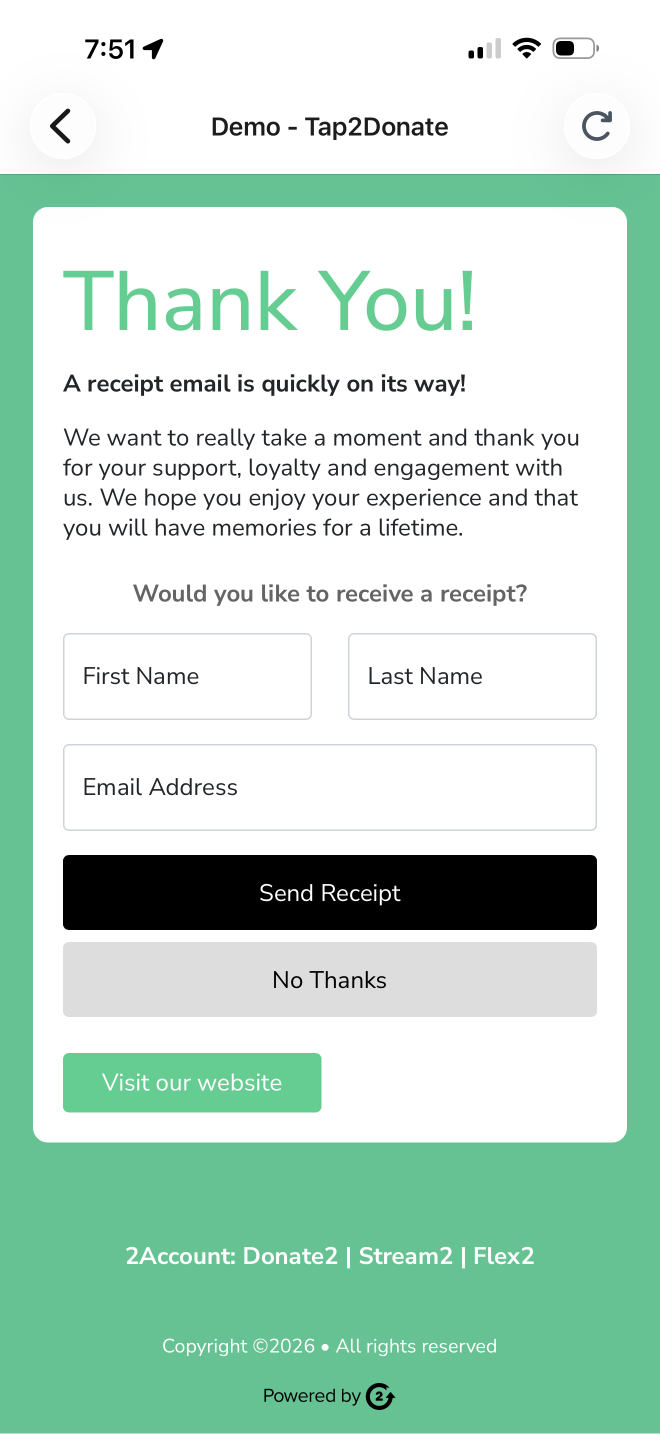
- Receipt & Identification: The associate asks: "Would you like a tax-deductible receipt?" They hand the phone to the couple, who enter their First Name, Last Name, and Email Address, then tap Send Receipt.
- Done! In under 30 seconds, the gift is processed, identified in Tessitura, and the associate is on to the next enthusiastic patron.
Step-by-Step Workflow Breakdown
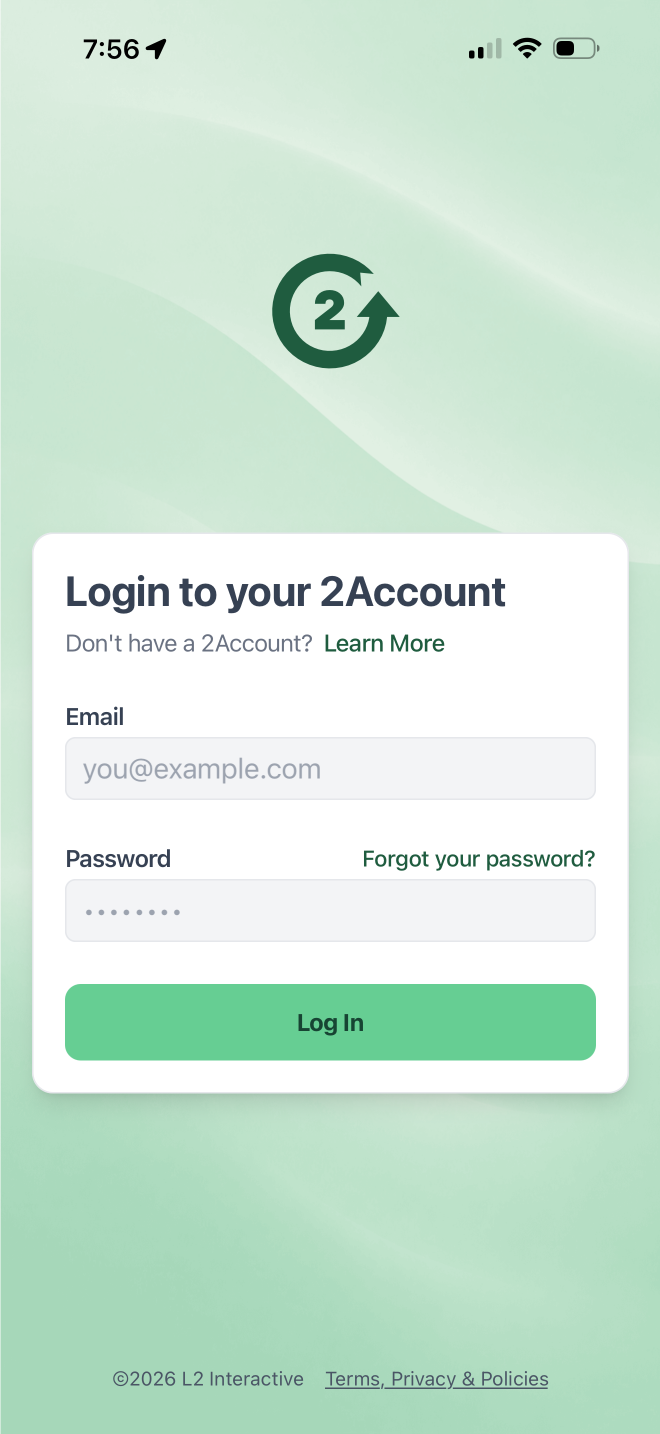
Open and log in to the 2Account Mobile App on your iOS or Android device.
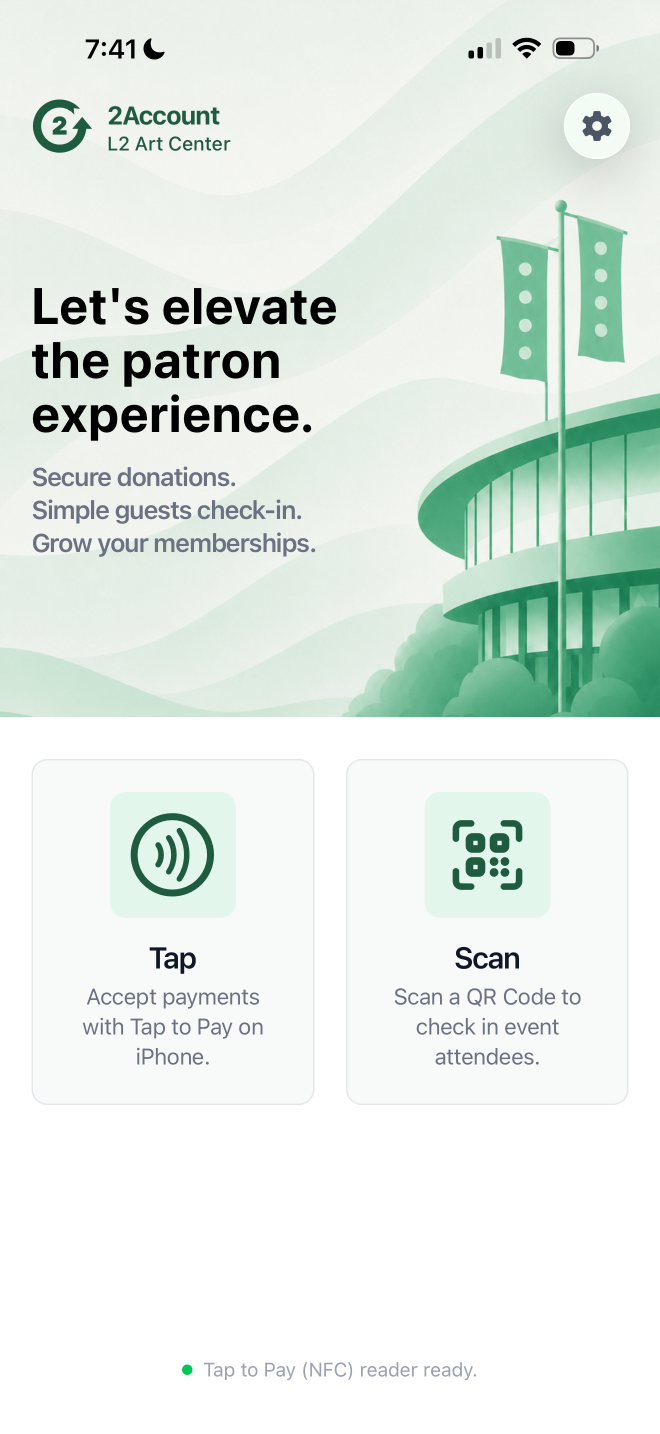
Select Tap to view a listing of the Tap to Pay Form available.
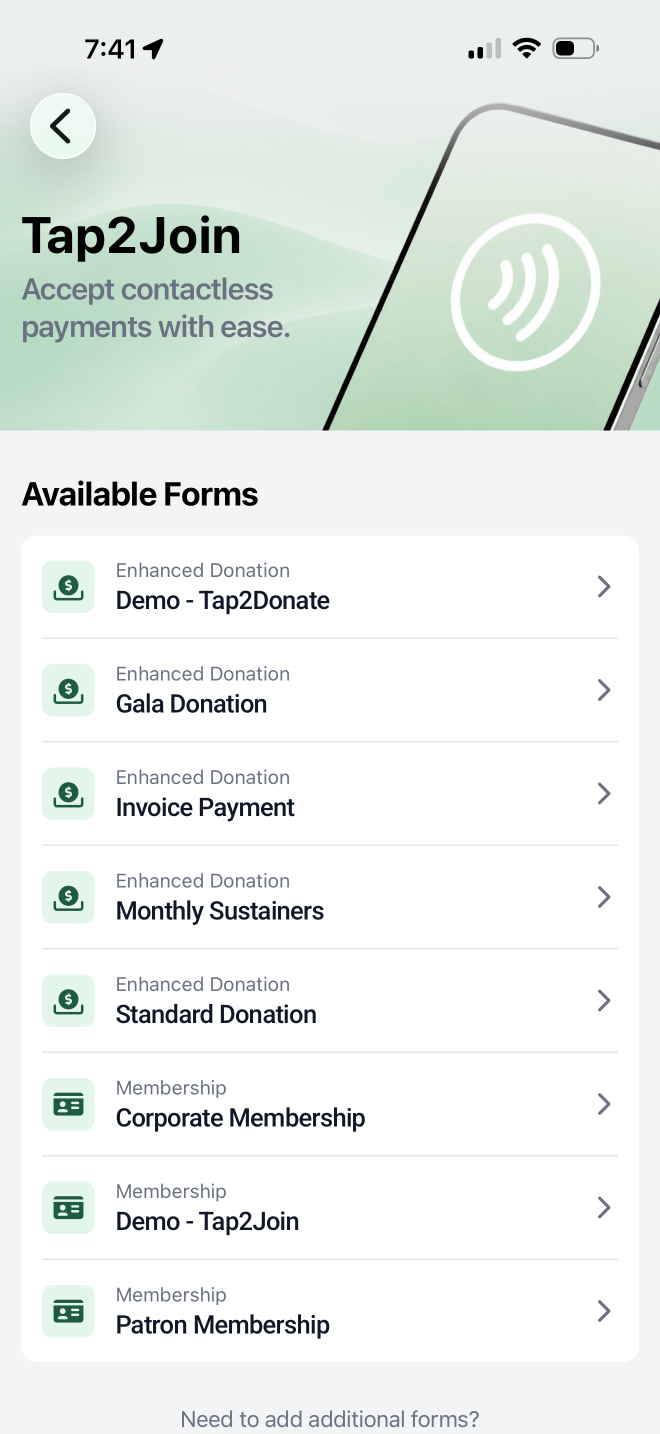
Select the Tap to Pay Form you want to use.
Tap the requested donation amount (e.g., $50.00) or enter a custom amount.
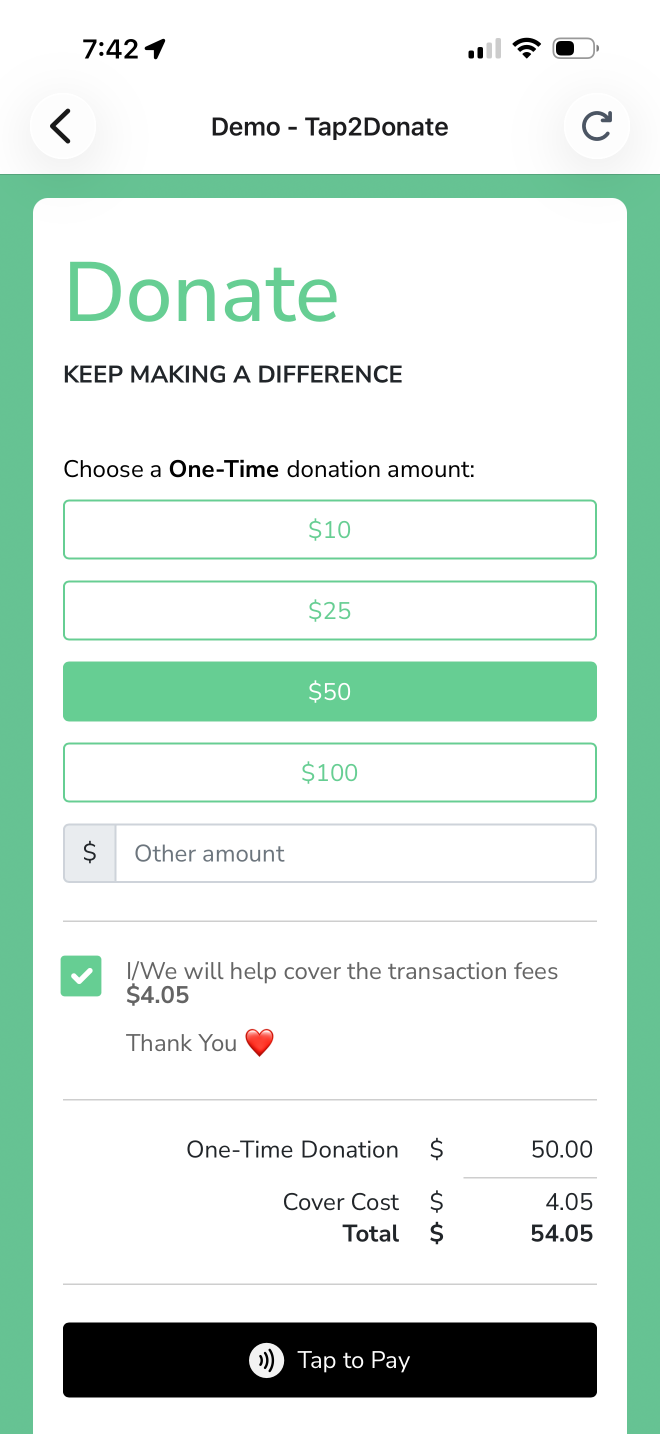
If the patron agrees to cover processing costs, tap the Cover Costs option on the screen. The total will automatically recalculate.
Tap the Tap to Pay action button to activate the device's NFC reader.
Instruct the patron to hold their contactless payment method against the top/back of your device:
Contactless Credit/Debit Card
Smartphone (Apple Pay or Google Pay)
Smartwatch (Apple Watch or Google Wallet)
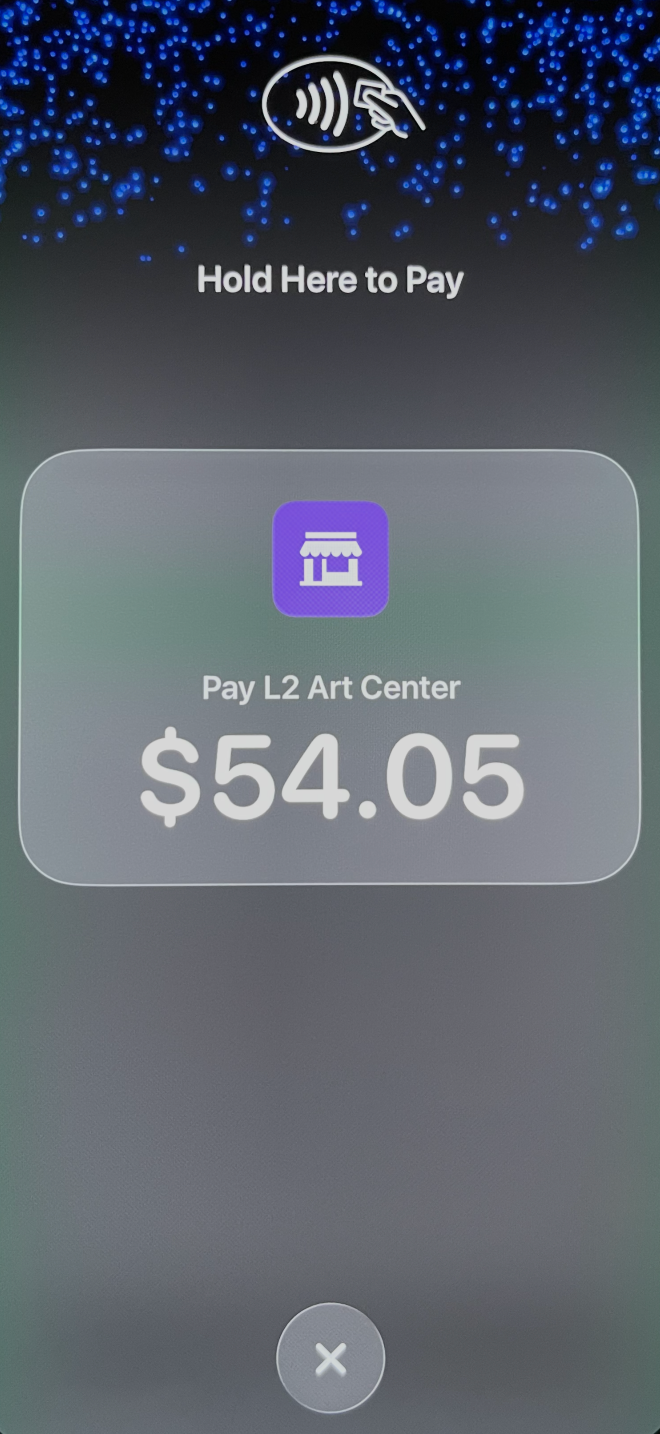
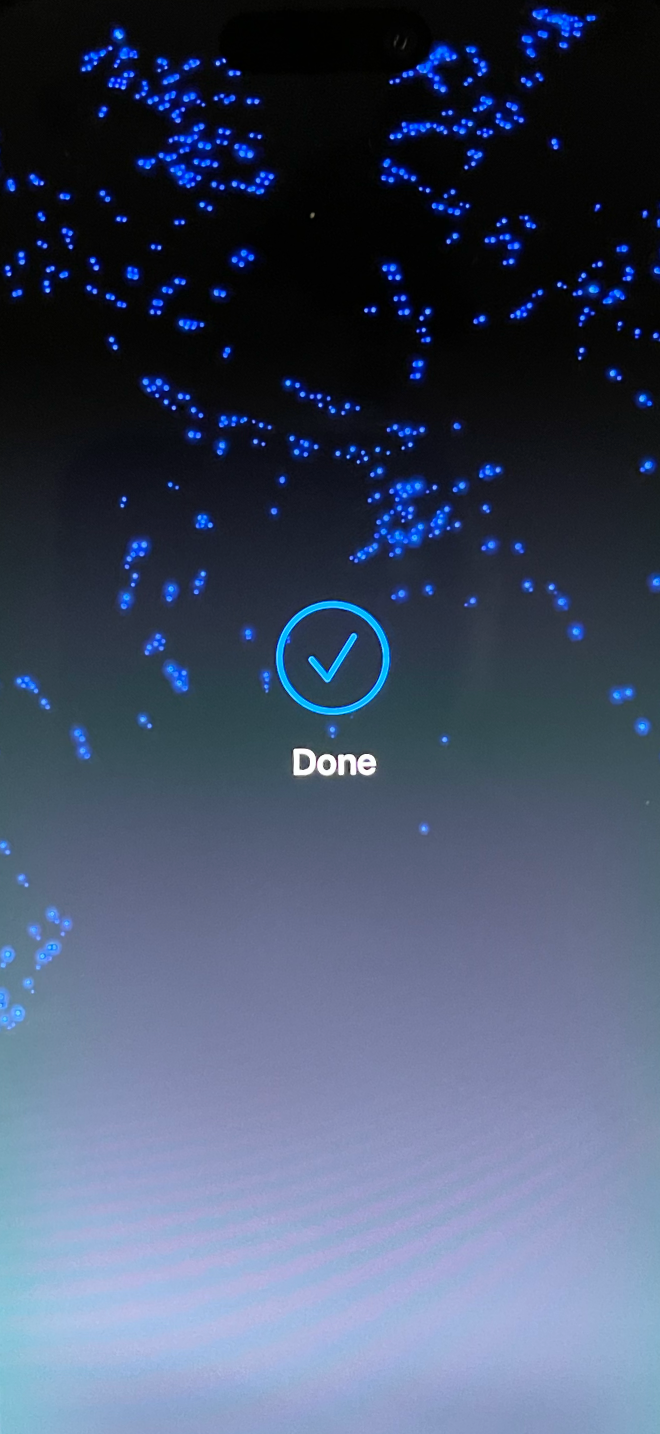
Wait for the payment success chime and visual confirmation screen.
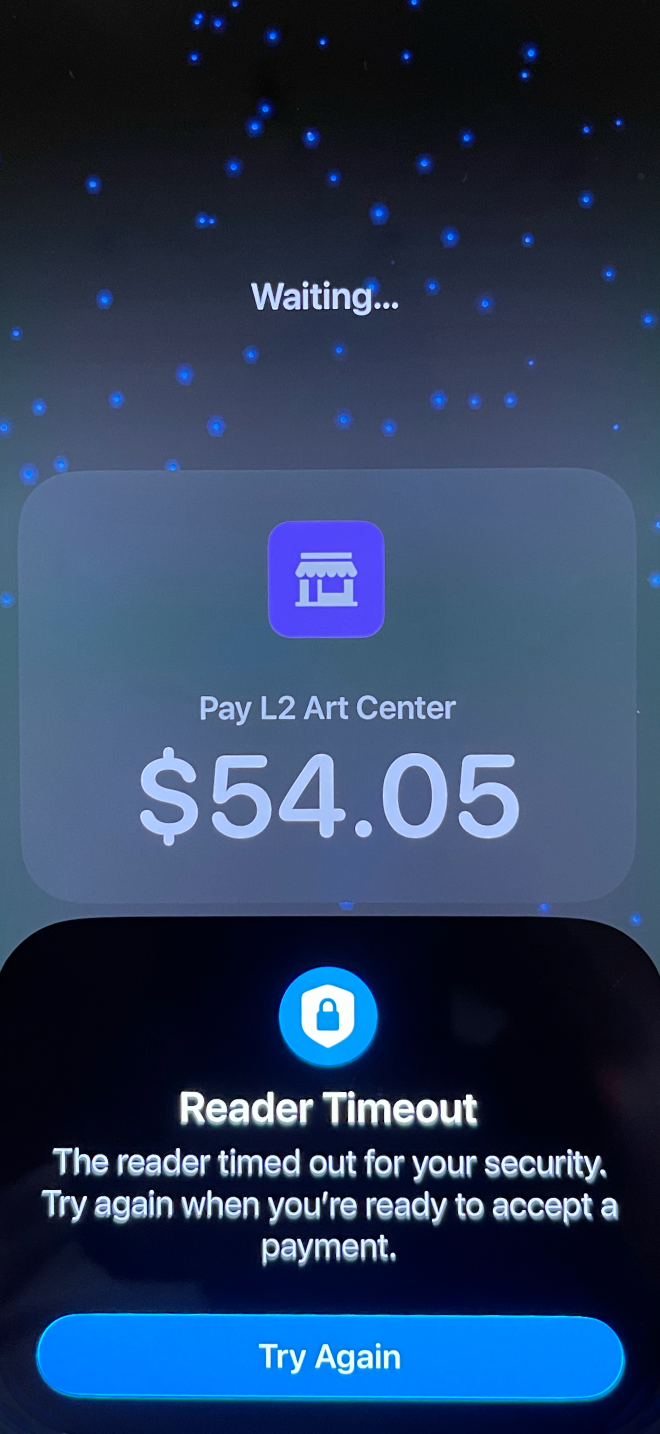
If you wait too long, the NFC reader will time out and you can try again.
At this point, if we do not have the patrons information because you didn't require it to pay or they decided not to provide it before paying, you have a chance to collect their information.
Patron Supplied Contact Details (Recommended): Hand the phone to the patron to fill in their First Name, Last Name, and Email Address, then tap Send Receipt. This converts the transaction into an identified gift linked to their constituent profile in Tessitura.
Anonymous Contribution: If the patron is in a hurry or declines a receipt, tap "No Thanks" (or let the screen time out). The gift remains 100% anonymous and is recorded that way in Tessitura.
Once the transaction is complete and the order data is processed into Tessitura, a receipt is generated. If the patron provided their contact information, a personalized receipt will be sent directly to them. Otherwise, an anonymous copy will be routed to the internal email address configured on the form settings.

