
Add-On Product
Configuring the Add-On Product Feature
The Add-On Product feature allows you to offer an optional supplementary item—such as a parking pass or merchandise—directly on your Flex2 Enhanced Flex or Membership forms.
1. Enabling and Pricing
-
Enable Add-On Product?
Select "Enabled" from the dropdown to activate the feature on your form.
Select "Disabled" from the dropdown to de-activate the feature on your form.
-
Amount
Enter the dollar cost of the add-on, such as "100".
-
Frequency
Choose how often the patron is charged for this item, such as "One-Time".
Choosing Weekly, Monthly, Quarterly, Semi-Annual, or Annual will result in a subscription in Stripe.
-
Add-On Product Total Label
Define the name of the item as it will appear in the patron's cart summary, such as "Parking Pass".
-
Add-On Product Subscription Label
Use this field if the add-on is a recurring frequency. This will name the subscription in Stripe so you can easily identify it.

2. Product Details and Copy
-
Image & Image Alt Tag
Upload an optional image to accompany your Add-On Product and provide an alt tag for accessibility.
-
Add-On Product Copy
Enter the description that patrons will read. This field supports standard HTML formatting.
-
Add-On Text Color
Set the hex color code for your descriptive text.

3. Button Configuration and Styling
-
Button Text
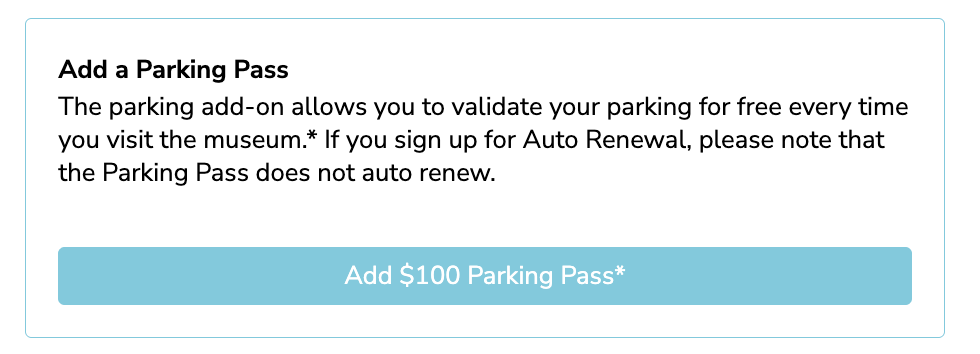
Define the call-to-action presented before the item is selected, such as "Add $100 Parking Pass*".
-
Deselect Button Text
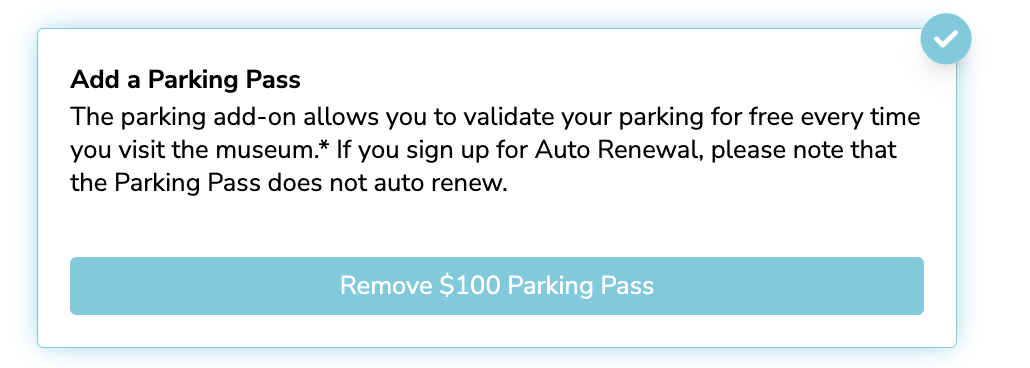
Define the text shown after the patron has added the item, giving them the option to remove it, such as "Remove $100 Parking Pass".
-
Styling Colors
Use hex color codes to customize the visual presentation, including the Icon Color, Border Color, Shadow Color, Button Color, Button Text Color, Button Hover Color, and Button Hover Text Color.

4. Tessitura Configuration
-
Add-On Product Type
Select how this transaction maps to Tessitura, choosing between "Price Type/Performance", "Fund", or "On Account".
- Mapping IDs
- If configuring as a Fund, select the Fund (e.g., Annual Fund - 1)
- If configuring as a On Account, select then Account payment method (e.g., Development - 12)
- If configuring as a Price Type/Performance, input the specific Tessitura "Performance" ID (e.g., 28152) and "Price Type" ID (e.g., 84), and use the dropdown to specify if the item is "Seated" (e.g., "Yes").

The Patron Experience
Once configured, patrons interact with the add-on seamlessly during checkout:
-
Initial View
The patron is presented with the add-on card displaying your formatted description and the initial add button.
-
Selected View
Upon clicking the button, a checkmark icon appears in the top right corner of the card. The button text updates to your configured deselect text, allowing the patron to easily remove the item if they change their mind.
-
Order Summary
The selected add-on dynamically populates in the cart summary below the primary membership or form item. It displays your configured label and clearly shows the additional cost being added to the final total.

