
Special Activity QR Code Scanning
Overview
The Scan feature in the 2Account Mobile App allows event staff to check in attendees at the door using QR Code scanning for Tessitura Special Activities.

Scanning a patron’s QR Code automatically updates their activity record in Tessitura (under Engagement >> Activities ) from their initial response status to your designated Attended status in real time.


How It Works: Step-by-Step
1. Patron RSVP & Form Submission
When a patron completes your online RSVP form, Tessitura tracks three core fields:
- Status: Records the patrons positive or negative response and sets the status.
- Attendees: Total number of attendees.
- Notes: Any notes provided by the registrant (up to 256 characters).
In Tessitura, the Status is text-based based and has no value like "true or false" or "1 or 0":
- Attending (Positive Response): Generates a status such as Accepted with the attendee count.
- Not Attending: Generates a status such as Declined (attendees set to
0).
2. Automated QR Code Email Receipt
When a patron submits a positive response (Accepted), the Message Manager sends an automated confirmation email receipt containing a unique, secure QR Code.
Patrons present this QR Code on their mobile phone or printed confirmation upon arrival at the event.
Note
Only the registrant receives a QR Code in their email receipt. Each attendee does not get a QR Code.
3. Scanning with the 2Account Mobile App
Staff members logged into the 2Account Mobile App can quickly check in patrons at the door:
- Open the 2Account Mobile App.
- Tap the Scan button ("Scan a QR Code to check in event attendees").
- Point the device camera at the patron’s confirmation QR Code.
Scan Results:
-
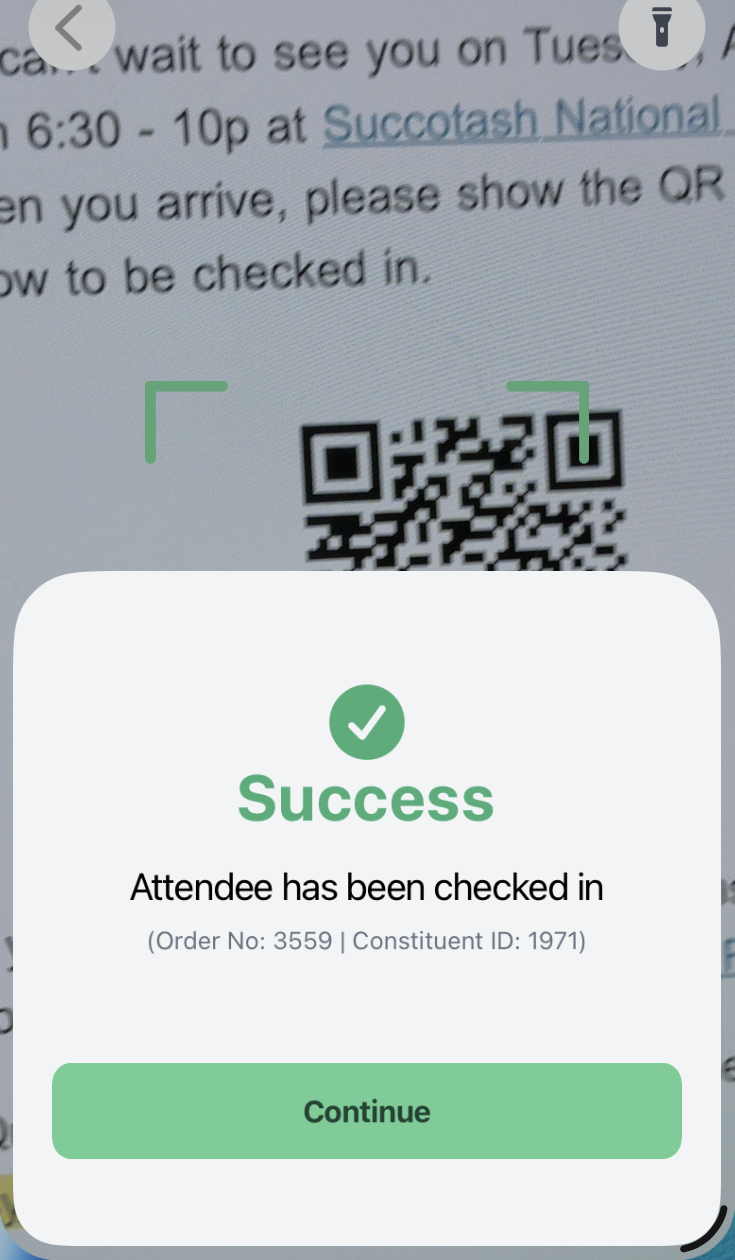
Success: Displays a green "Attendee has been checked in" confirmation along with the patron's Order Number and Constituent ID.
-
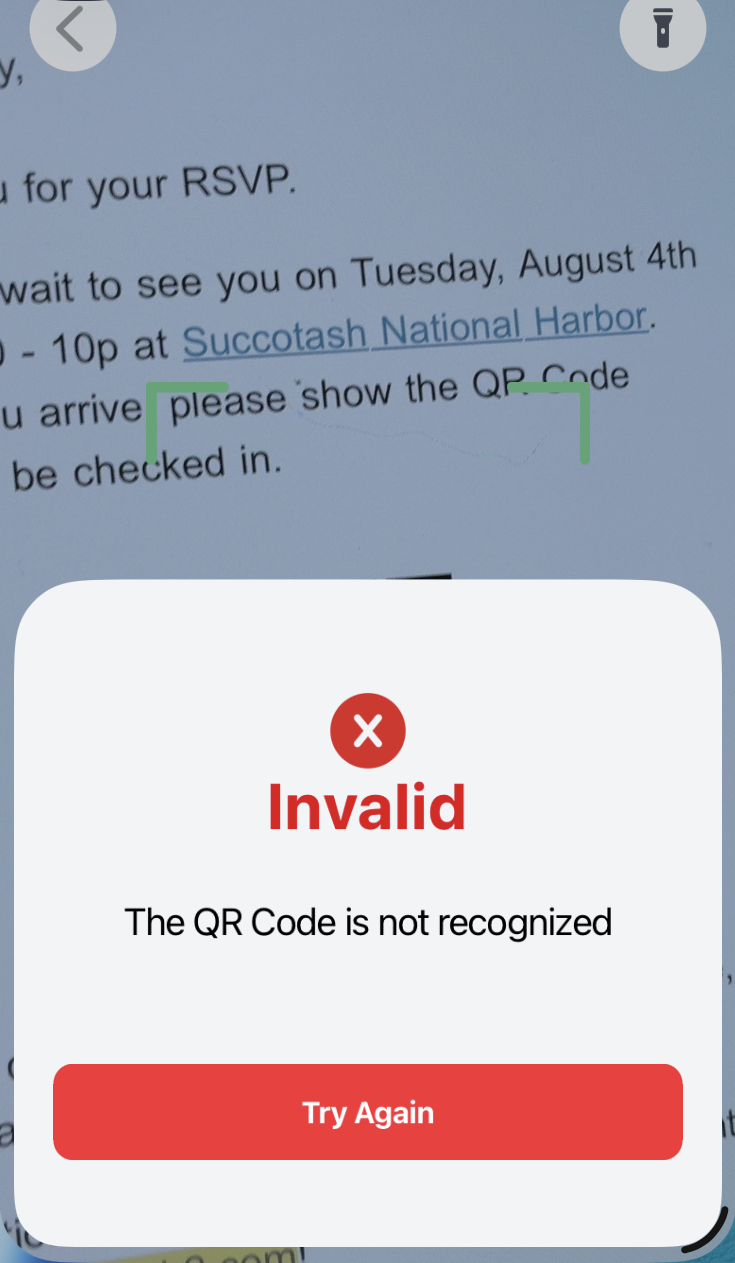
Invalid: Displays a red "The QR Code is not recognized" error if the code is invalid or unreadable. Tap Try Again to rescan.
4. Automatic Tessitura Status Update
Once scanned, 2Account immediately updates the patron's record in Tessitura under Engagement >> Activities:
- The record’s Status automatically changes from Accepted to your configured Attended status value.
-
You can customize the exact status string written to Tessitura within your 2Account Web Portal under
Tessitura LIVE Settings >> Special Activity - Attended(e.g., setting the status dropdown to Attended).
Staff Access Note
To grant event staff permission to scan QR Codes without giving them access to other administrative settings, set their 2Account Mobile App permission to include Special Activity Scanner in User Management.