
Chariot DAFpay - Tessitura Integration
Unlock the Power of DAF Giving with DAFpay
DAFpay simplifies the Donor Advised Fund giving process for both your supporters and your team. With a seamless Tessitura integration, our platform processes real-time grant requests from thousands of unique DAF providers. This not only unlocks massive, untapped fundraising potential but also drives significant operational efficiency for your staff.
REST Permissions Required
In order to use the Chariot DAFpay Integration, there are specific REST Permissions that need to be granted. Here is a link to the Help Article
Step 1: Create your Chariot DAFpay account
- Go to this link to Create Your Chariot Account
- Create your Chariot DAFpay account
- Go to your 2Account dashboard and select the Chariot DAFpay menu
Step 2: Connect up your Chariot DAFpay
- You must be the owner of the account to connect or disconnect the Chariot DAFpay integration
- Enter your Employer Identification Number (EIN)
- Enter a valid administrative contact email address for your organization
- Click "Connect with Chariot DAFpay"

If it fails, you will receive the following message. Please fix the issue and try again.

Once your Chariot DAFpay is connected your will receive a connected and authenticated message. If you ever need to detach your Chariot DAFpay, the account owner can do it here using the "Detach Account" button.

Step 3: Configure your Chariot DAFpay Tessitura Payment Method
Once your Chariot DAFpay account is connected you will have a new option to set a specific Payment Method for the DAFpay transactions.
You want to do this for 2 reasons:
1) The transactions are not using Stripe.
2) For accounting/reconciliation purposes.
DAFpay Payment Method
You should make a new Payment Method for your DAFpay transactions in Tessitura. Make sure that the D2 Group has access to the payment method in the Security Module. Lastly, you will need refresh the cache in your 2Account for Tessitura.
Navigate to the Tessitura Menu >> LIVE >> Configuration then scroll part way down the page and look for Chariot DAFpay Payment Method. Select the new payment method you want to use.

Step 4: Install the DAFpay Stored Procedure
You can download and run the DAFpay install script against Tessitura, then enter the resulting local procedure ID below.
Validation executes the procedure's health-check branch before any DAFpay processing can be enabled. If the Procedure ID you entered fails validation, the ID is either wrong or the installation failed. You will need to investigate and determine the problem and get it fixed so you can validate the procedure ID.


Just getting started with DAF Providers?
If you are new and just getting started, there is nothing to map. When you start using DAFpay on your forms, we will automatically create and map the DAF Providers for you.
Step 5: Configure your DAF Account Mapping & Settings
There are 3 ways you can map the Donor's Individual Account. Select the option that works best for your organization.
Donor Advised Fund Charitable Account
Choose this option if your organization wants to maintain detailed, individualized records for every single Donor Advised Fund provider (e.g., Fidelity Charitable, a specific local bank, or a community foundation) within Tessitura. By mapping specific DAF providers to their unique Constituent IDs, you ensure that every transaction is explicitly attributed to the exact financial institution issuing the grant. This is the ideal choice for organizations that require highly granular financial reporting, strict reconciliation tracking, and precise oversight of exactly which institutions are distributing funds.
Personal Charitable Account
Select this option if your organization prefers to track DAF giving through established relationship networks between the individual donor and their specific charitable vehicle. By defining an "Affiliate Type" (such as "Advised Fund"), the system will automatically match the individual constituent to their affiliated personal foundation or fund record. This is best for organizations heavily focused on donor relationship management, as it ensures giving histories, soft credits, and household structures remain cleanly and automatically connected to the individual donor's profile in Tessitura.
Generic Charitable Account
Opt for this streamlined approach if you want the simplest, lowest-maintenance setup. This option routes every incoming DAF contribution—regardless of which financial institution it came from—into a single, universal catch-all Tessitura Constituent record (e.g., a "Generic DAF Provider" account). It is perfectly suited for organizations that do not need to clutter their CRM with distinct records for every bank or community foundation in the country, and instead just want a centralized bucket to process the inbound payments quickly while still appropriately soft-crediting the individual donor.

Donor Advised Fund Charitable Account

The mapping determines where transactions from DAF Providers are processed.
If you already have constituent records made in Tessitura for your DAF Providers you can add them to the mapping so they are ready to go.
To map a DAF Provider
- Select a DAF Provider.
- Enter the Tessitura Constituent ID of the DAF Provider .
- Select a Payment Method you've added to Tessitura or use the Default DAFPay Payment Method.
- Click + Add Mapping and a new DAF Provider entry is added.

If the constituent ID is not valid, you will be notified and the mapping will not be added.

Payment Methods are located in your tessitura under Finance >> Payment Methods.

Configured Mappings Tool Bar
You can do the following with the tool bar.
- Search mappings by provider, constituent ID, payment method, or status.
- Expand or collapse all mappings.
- Filter by All statuses, Mapped, Auto-created, Catch-all, Needs mapping, or Failed.
- Filter by All payment methods, Default payment methods or Custom payment methods.
- You can Reset the tool bar to display the default settings.


Example of mapped DAF providers
Each panel can be collapsed to hide and expanded to show the following information:
- DAF Provider Name
- Constituent ID
- Payment Method

Mapped entries can be edited and deleted.


Donor Advised Fund Charitable Account
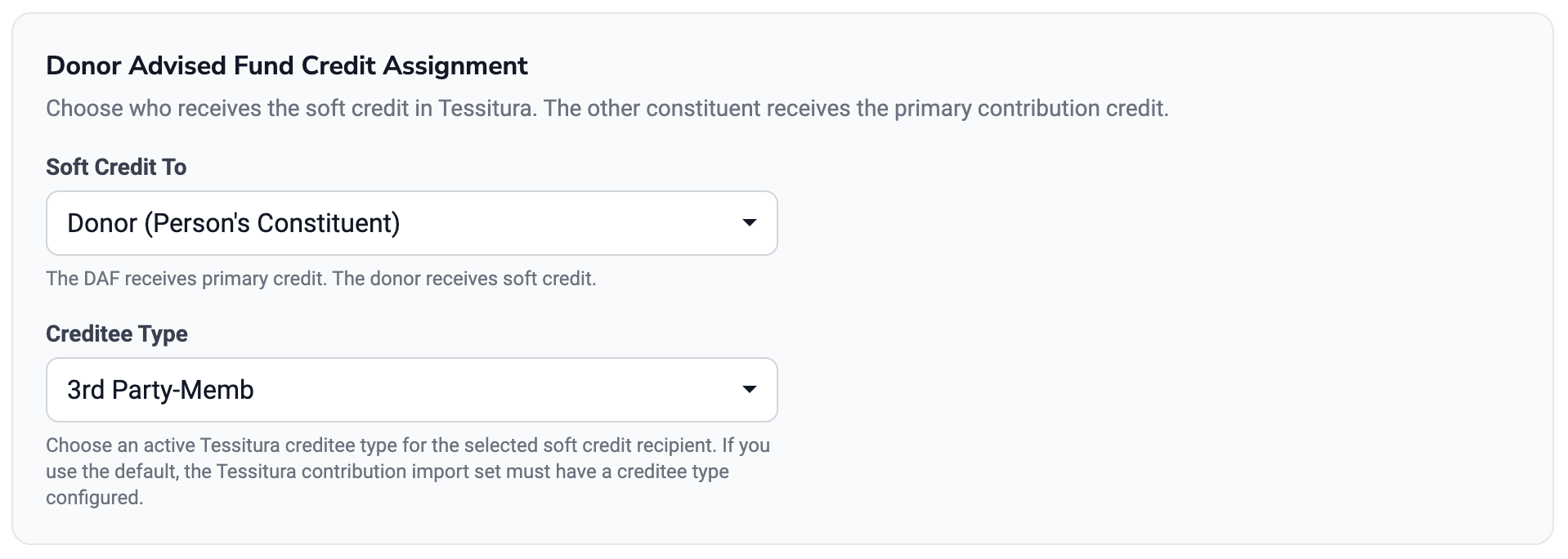
Assign the Soft Credit to the Donor or to the DAF constituent record. Additionally, assign the Creditee Type from the drop downs.


Handling Unmapped Accounts
Choose what should happen when a DAFpay donation does not match a configured mapping.

Create A New DAF Provider Tessitura Constituent
In the case that we need to make a new DAF Provider Tessitura constituent record, configure the following:
- Select the Constituent Type you want us to make
- Enter a Street Address, City, State, Zip Code, and Phone
The likelihood of this "fallback" address being used is slim. When we process the DAF transaction, we are provided the official address of the DAF Provider and that is the address we will use. This is just in case there is any issues with the address.


Use Catch-All DAF Provider Tessitura Constituent
Attribute all contributions from unmapped accounts to a single Tessitura constituent.
- Enter the Constituent ID of the account you want to use

Send Email Alert
Skip automatic Tessitura processing and notify your team to handle the unmapped grant manually.
- Enter one or more email addresses.

Select "Save Settings" to record your settings

Personal Charitable Account
Personal Charitable Accounts are base off the Donors constituent record that is either found or created during the order process.
Jane Doe is not in your Tessitura
Jane Doe does not have an existing constituent record and there is no Jane Doe Charitable Account affiliated record. As a result, we make a Jane Doe Constituent record (the same as we do any new constituent record based on your Tessitura LIVE settings) and a Personal Charitable Account record resulting in an affiliated account named "Jane Doe Charitable Account"
Jane Doe has a constituent record in your Tessitura
Jane Doe's existing constituent record is found but there is no Jane Doe Charitable Account. As a result, we make a Personal Charitable Account resulting in an affiliated account named "Jane Doe Charitable Account"
Jane Doe has both a constituent record and a charitable account record in your Tessitura
In that case, we are all good to go!
If you use or want to use Personal Charitable Accounts, you can configure how you want them created using this option.

Affiliate Type Mapping
Choose the Tessitura Affiliate Type used to match constituents to their personal charitable accounts.

This will come from your Affiliation Types in Tessitura

Personal Charitable Accounts - Handling Unmapped Accounts
In case we need to make a new Tessitura constituent record for the Personal Charitable Account, configure the following:
- To configure the Charitable Account Name, click the %first_name%, %last_name%, or %sort_name% tokens to format the default naming convention (e.g.,
%first_name% %last_name% Charitable Account). - Select a constituent type for the newly created account.
- Enter an Street Address, City, State, Zip Code, and Phone
NEED CLARIFICATION
The likelihood of this "fallback" address being used is slim. When we process the DAF transaction, we are provided the official address of the DAF Provider and that is the address we will use. This is just in case there is any issues with the address.
Because DAF providers do not always pass full donor contact information, these defaults are used to build the account name and provide fallback data when a new account is automatically created.

Use Catch-All Constituent
Attribute all contributions from unmapped accounts to a single Tessitura constituent.
- Enter the Constituent ID of the account you want to use

Select "Save Settings" to record your settings

Generic Charitable Account
Attribute all contributions to a single Tessitura constituent.
- Enter the Constituent ID of the account you want to use

Select "Save Settings" to record your settings
Step 6: Configure Cover Costs
Allow DAFpay donors to cover processing costs. The calculated amount is always rounded up to the next whole dollar because DAF grants cannot be fractions of a dollar.
DAFpay cover costs functionality only applies to DAF payments. Stripe payments have their own unique cover costs amount managed in the Stripe integrations.
